Email Password
The email password interfaces are provided for you to create a 'Forgot Password' system that will allow the user to change or retrieve their password if they cannot remember it.
There are two different options when creating this system:
- Email password: Will email the password to the user if no encryption has been applied to the passwords in the database.
- Email encrypted password: Will email a link to a page where the user can change their password. This is used if the encryption that has been applied to the password field does not allow for decryption.
- The Email encrypted password return interface allows you to apply the necessary functionality to make the return page function properly.
Note: If you created a 'Forgot Password' system using the Create Security Pages interface, you will not need to use this interface unless you need to make modifications. During this process, if the password cannot be decrypted, the Email encrypted password return option is automatically implemented.
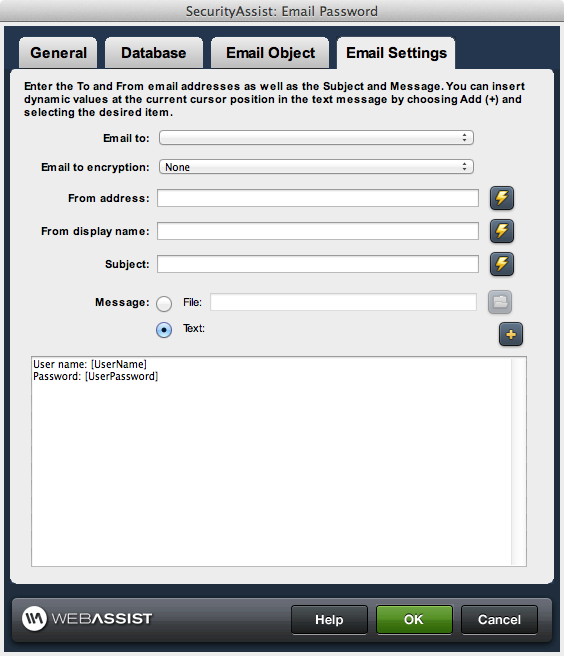
General tab
- Trigger: Choose when this action will occur. Select the lightning bolt to specify the trigger dynamically.
- Pass original query string on redirect: If selected, the query string will be passed on when the redirect occurs.
- If look up matches, go to: Choose the page you wish to show to your user after they request a password email.
- If look up differs, go to: Choose the page you wish to show to your user if the information they entered does not match what is in the database.
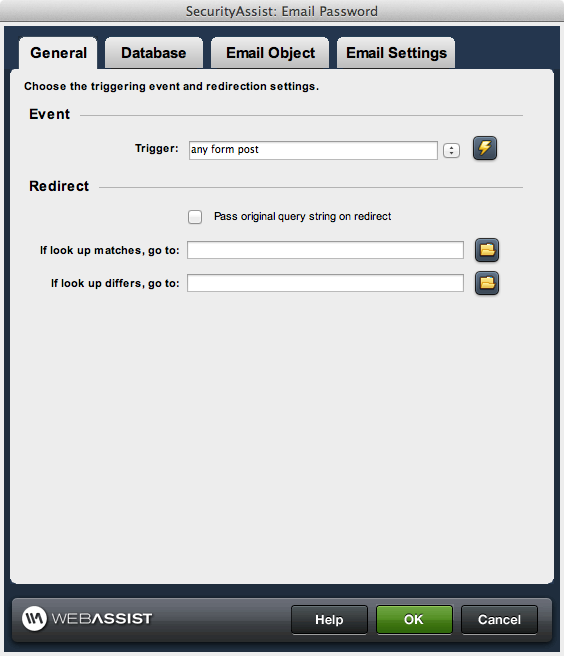
Database tab
- Connection:Choose your database connection.
- Table: Choose the database table being used for user information.
- Look up column: Choose the column that is used for the email look up.
- Look up encryption: (if applicable) Choose the encryption being used.
- Look up value: Specify the lookup value or use the lightning bolt to select it dynamically.
- User name column: Choose the user name column.
- User name encryption: (if applicable) Choose the encryption being used.
- Password column: Choose the column containing the passwords.
- Password encryption: (if applicable) Choose the encryption being used.
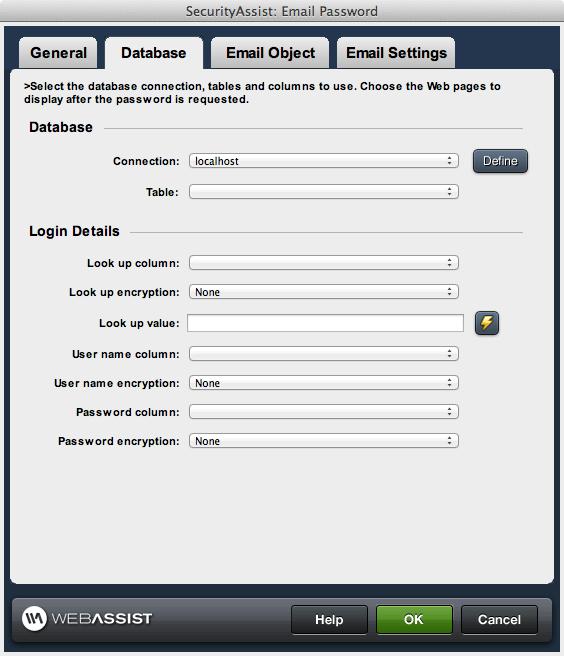
Email Object tab
Use the email object tab to specify the details for your outgoing SMTP server. In many cases, the default settings will work. However, if you are not receiving any emails that are being sent, you should check with your host regarding settings that should be entered here.
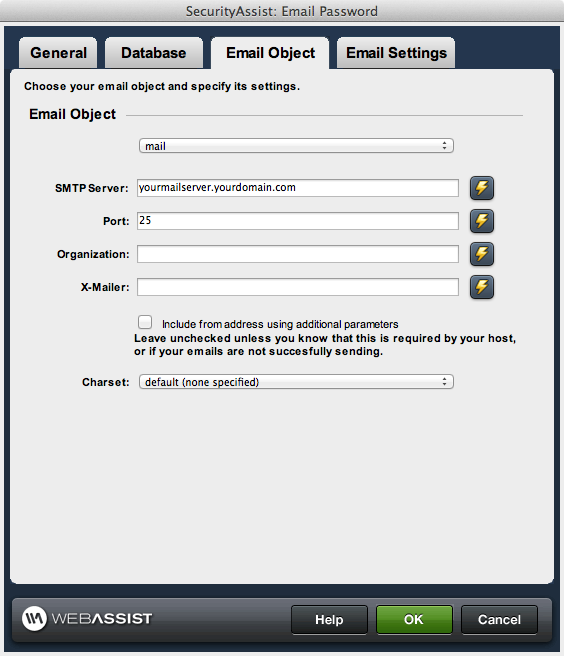
Email Settings
Use the details below to configure the email that is going to be sent.
- Email to: Choose the column to be used for the "to email address"
- Email to encryption: (if applicable) Choose the encryption being used.
- From address: Choose the address you would like the email to come from.
- From display name: Choose the name you would like the email to come from.
- Subject: Enter a subject for the email.
- Message: Choose the content for the email.
- File: Select this option and choose a file that you would like to be used as the email body.
- Text: Select the option and configure the content of the email via the text area below.